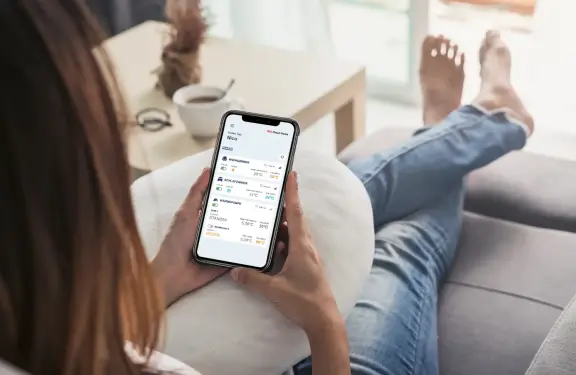
MELCloud Home: The new app for controlling your air conditioning and heat pumps
Intuitive, modern, future-proof
Tool/Software 15.04.2026With MELCloud Home, Mitsubishi Electric is launching a new generation of apps for controlling air conditioning and heating systems. It has been developed from scratch and replaces the previous MELCloud app – with a modern interface, improved operation, and all the familiar functions. Whether at home, in the office, or in multiple properties, the app enables simple, secure, and flexible control of your devices – via smartphone, tablet, or desktop.
- One app, many possibilities
- Feeling good is a matter of attitude with the MELCloud Home app
- Rethought: User guidance & design
- Availability & Compatibility
- MELCloud Home: Fits your life
- FAQ: Frequently asked questions
- Getting Started & Installation
- Using the app & features
- Possible malfunctions
- Contact search
One app, many possibilities
FunctionsFeatures at a glance
- Central control of your devices: conveniently set the temperature, fan speeds, operating modes, or schedules via the app
- Energy consumption at a glance: Transparent overview of consumption values – for efficient energy management
- Program function: Predefine your own operating modes such as "Away," "Vacation," or "Energy Saving" and access them flexibly.
- Cross-location management: Multiple systems or buildings can be conveniently controlled together
- Enable push notifications: Receive automatic notifications in case of maintenance, malfunctions, or special events.
- Secure cloud connection: Access via Wi-Fi or mobile network, with the highest security standards
Download brochure
Rethought: User guidance & design
User guidance & designOptimized for efficiency, clarity, and device diversity
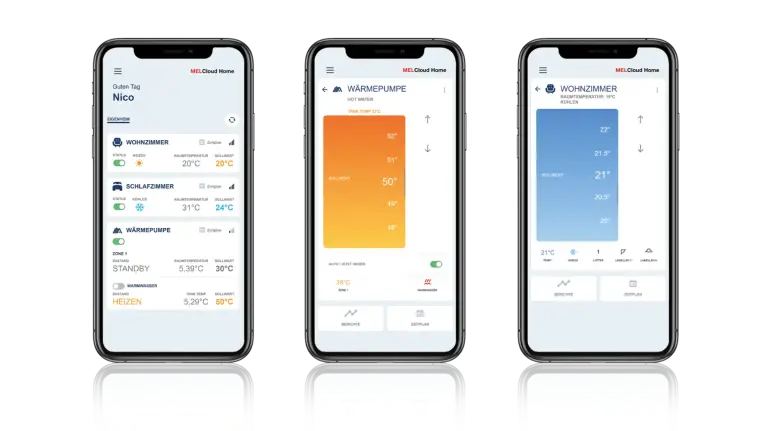
The app scores points with a revamped interface—functional and user-friendly. Right from the start, users get a structured overview of all connected devices and their current statuses.
The key improvements in detail:
Context-based user interface
- Displayed functions automatically adapt to the respective device
- Only relevant settings visible – for maximum clarity
- Quick access to frequently used functions
Intuitive scheduling
- Easily create and move time programs
- Weekdays and time slots can be easily customized
Personalization & Efficiency
- Favorites function for quick access
- Push notifications for maintenance and errors
Clearly structured design
- Colored status indicators and modern icons
- Large controls, high-contrast layout
- Easy to understand for all users
Maximum flexibility thanks to responsive layout
- Optimized for smartphones and tablets
- Uniform operation across all platforms
- Can also be used browser-based in the office or home office
Availability & Compatibility
DownloadFree download for all supported MELCloud systems
MELCloud Home is compatible with all current MELCloud-enabled devices from Mitsubishi Electric, including air conditioners and heat pumps for residential and commercial use.
Download now for free:


FAQ: Frequently asked questions
Frequently Asked Questions The area marked in red indicates the position of the WiFi adapter in the air conditioning system.
MELCloud Home FAQ
In our FAQ, you will find answers to key questions about the MELCloud Home app - from setting up the WiFi adapter to managing multiple devices and locations.
Getting Started & Installation
Getting Started & InstallationThe required data can be found on the underside of the device. If this is not the case, refer to the image above to locate the WiFi adapter on a wall-mounted air conditioner. For Ecodan devices, please remove the cover of your indoor unit.
To control an air conditioning or heating system with the MELCloud Home app, you need the following:
A compatible Mitsubishi Electric device —e.g., an air conditioner or heat pump that supports MELCloud.
A suitable adapter that connects the device to the Internet:
- either the MAC-567IF-E1 WiFi adapter or newer (connection via your home network),
- or the CL-HA1-A1 IoT adapter, which establishes a connection via the mobile network.
A Wi-Fi router, ideally with a WPS function —this means that the router has a button that makes it particularly easy to connect devices.
Alternatively, a GSM/LTE router will also work if no conventional Wi-Fi is available.
If you use the CL-HA1-A1 IoT adapter, you do not need a Wi-Fi router, as this adapter works via the mobile network—using an integrated SIM card.
Depending on the model , the MELCloud Wi-Fi adapter can be connected to your network via Bluetooth (MAC-597IF-E only), WPS push function, or access point mode. Detailed step-by-step instructions for installing the MELCloud WiFi adapter can be found in the user manual or in our videos:
That depends on your home or building situation. Keep the interface as close to the router as possible. If necessary, third-party Wi-Fi amplifiers can be used. Important: The MELCloud WiFi adapter only supports the 2.4 GHz frequency band.
No, only original Wi-Fi adapters from Mitsubishi Electric are supported.
Please follow the steps under "How do I install the MELCloud Wi-Fi adapter?"
All Wi-Fi adapters from the MAC-567IF-E series onwards are compatible with MELCloud Home.
Check whether the "NET" and "Unit" LEDs are flashing green alternately (every 5 seconds). If this is not the case, we recommend resetting the MELCloud Wi-Fi adapter. Restart the adapter or repeat the pairing process (Bluetooth, access point, or WPS—see"How do I install the MELCloud Wi-Fi adapter?"). After the second pairing, the adapter will usually reconnect automatically in the event of future network interruptions.
Using the app & features
FAQ Usage & FunctionsGeneral operating instructions for the MELCloud Home app can be found here.
Yes, MELCloud Home can be connected to Amazon Alexa for convenient voice control of your Mitsubishi Electric devices. Whether it's an air conditioning or heating system: once it's connected to the router via a Wi-Fi adapter and set up in the app, you can activate predefined programs via voice command. For example, with Alexa, simply say, "Alexa, activate away," to put your devices into energy-saving mode. Say "Alexa, select home program" to reactivate them.
Requirements:
- MELCloud Home App is installed
- A MELCloud Home user account has been set up.
- The devices are compatible, connected via Wi-Fi, and work perfectly in the app.
The "Schedule" function allows you to control your devices automatically at set times – daily or weekly. Similar to classic hardware controllers, you can set specific operating times, for example for switching your system on or off. To create a schedule, select the desired device in the app and tap "Schedule" in the lower right corner. There you can individually specify at what times on which days of the week certain switching commands are to be executed.
Note: To avoid conflicts with other controllers, only the schedule in MELCloud Home should be used when the app is active.
The "Guest Access" function allows you to grant specific individuals access to your devices. For example, your children or employees can control the systems, while a specialist service provider can also access your system—for remote maintenance or diagnostics, for example.
To set up guest access, select the relevant device in the app and tap "Options" in the top right-hand corner. There you will find the "Share product" function. Enter the email address of the MELCloud Home account with which you want to share the device and confirm the process by tapping "Share."
Possible malfunctions
FAQ Possible malfunctionsEnsure that the device is set to the desired operating mode (e.g., heating or cooling). If the mode has been selected correctly but the device is still not working as expected, we recommend contacting your specialist dealer directly for further inspection. They can check the system and professionally remedy any possible causes.
Error messages may indicate network problems, server failures, or device errors. Check your internet connection and restart the app, router, and adapter if necessary. If the error persists, note the error code and contact a specialist.